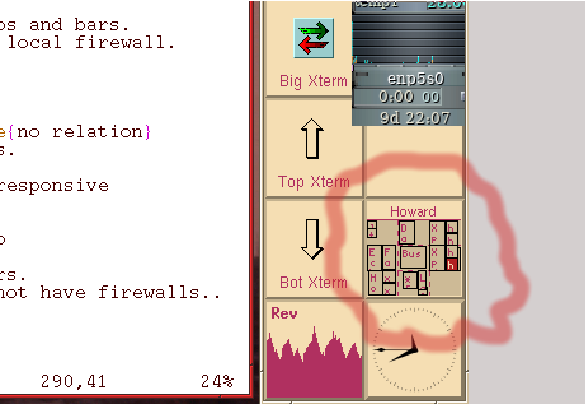
Figure 1: Virtual Windows on FVWM
Provide detailed instructions on the current Linux installation on my laptop. This is a rescue procedure, in case I have to re-install Linux.
Provide new Linux users with a general example of how a Linux machine is installed and configured.
The OS is Fedora 43, downloaded 2026-02-22. This is a refurbished machine I bought 2018-04-22 because my old Lenovo Thinkpad was showing signs of old age. I assumed things were about to break. It is nice to have a 64 bit laptop.
This document is copyright © 2026 by Howard Gibson. You may post this on web pages and bulletin boards free of charge. All other rights are reserved.
GNU/Linux is Free Software. Your computer should not be encumbered by copyrights and Digital Rights Management (DRM). Proprietary software publishers are trying so hard to prevent unathorized copying that they can prevent you from installing and using copies you purchased, and are authorized to use. Also, if you cannot run the application you used to create your data, you don’t own your data!
GNU/Linux is not hard to install on most computers. The latest “bleeding edge” video and sound cards may give you trouble. If you are buying a new computer, you should do some research on the hardware. If your computer is older, GNU/Linux should have all the drivers you need. You need to research GNU/Linux support on printers and scanners. Not everything works.
A basic GNU/Linux install will include some very good graphics programs, particularly GIMP, a good substitute for Adobe Photoshop. Just about every programming tool is available for GNU/Linux, except for the proprietary Microsoft ones like Visual Basic and C#.
GNU/Linux can run efficiently on older, slower computers, because you can select smaller, faster user interfaces and applications. Install the window managers XFCE and LXDE. Libre Office is a credible alternative to Microsoft Office because it is just about as bloated as Microsoft Office. Try the word processor AbiWord, and the spreadsheet Gnumeric. You could learn to use LaTeX, whose files are edited with a text editor.1
GNU/Linux is less capable at video games and multimedia. There are lots of Free Software computer games out there, but the best stuff is commercial and proprietary. Few publishers support GNU/Linux.
The big problem with GNU/Linux and multi-media is ideological. Most media formats are proprietary. GNU and Linux are the work of Free Software people, who are reluctant to support proprietary formats. If you spend an hour or so surfing GNU.org, you will understand who you are dealing with. The GNU “Copyleft” really is a copyright. All copyrights are supported by the Free Software community.
GNU/Linux can be made to support multi-media. I watch YouTube and Netflix on my GNU/Linux box. I can watch most commercial DVDs. Don’t expect the Free Software community to knock itself out to help you.
For more information on the thinking behind Free Software, just follow the links. You can get support for most media formats. Just search Google for Linux multi-media support.
Free Software links…
Free Software Foundation: https://fsf.org
GNU Operating System: https://gnu.org
I had no problems installing Fedora 43 on this machine. The default settings all worked. I had no problems with wireless networking. Not only did the installer connect, Fedora connected automatically when I logged in for the first time.
This OS is installable by Linux geeks, and by ordinary mortals.
Download install ISO images from the internet. These can be burned to DVDs, or copied to USB sticks. New computers generally do not have DVDs or Blue-rays. There are instructions on the internet for creating bootable USB sticks from ISO files.
If you are interested in Linux, buy one of the books. Christopher Negus’ Linux Bible has a tenth edition as of 2020. I cannot find a Fedora Bible dating any later than 2011. David Clinton and Christopher Negus’ Ubuntu Bible is dated Dec 10, 2025 on Amazon. This may help you determine which GNU/Linux distribution to install.
The default GUI with Fedora is Gnome. In the past, Gnome has been a very nice user interface, predictable to anyone coming out of the Windows world. The new Gnomes are very much fancier than Gnome 2, and they introduce all sorts of new paradigms to the user. I don’t like them.
Maybe you will like Gnome 3! Install the window managers XFCE and LXDE. These are small and fast, ideal for older, slower computers with limited RAM. They are predictable to a user coming out of the Windows world.
The thing that actually pisses me off about Gnome 3 and 4 is the implementation of virtual windows. This is a convenient feature of most X11 window managers, as shown by the figure. I have set up my FVWM desktop to show nine windows, each selectable by a mouse click. I scatter my applications around these windows. Usually, I drop my email and web browser in one window, my file manager in another window. Each big application I have running gets its own window. I am one click away from whatever it is I want to do. Gnome 3 supports virtual windows, but selection requires several mouse clicks. It is much less convenient. On most window managers, look for something called a pager.
A Microsoft Windows user probably is not aware of virtual windows, and might find Gnome to be okay. The other window managers still are better.
I know nothing about Macs. I have no idea of how all this looks to a Mac user.
Historically, GNU/Linux’s GUI is the X Window System, also known as X11R6. This is getting less and less support from the software community, and it is being replaced by Gnome’s Wayland.2 This should not affect modern window managers like Gnome. I like the very old FVWM, but it appears that this is being ported to Wayland. My favourite X11 application is the vector graphics program xfig. I hope this survives the transition.
SEcurity Enhanced Linux, according to Wikipedia3 …
is a set of kernel modifications and user-space tools that have been added to various Linux distributions. Its architecture strives to separate enforcement of security decisions from the security policy, and streamlines the amount of software involved with security policy enforcement. The key concepts underlying SELinux can be traced to several earlier projects by the United States National Security Agency (NSA).
SElinux seems to be a protection from rogue users. It keeps me from using httpd locally. As of 2024-06-25, it seems to have objected to me using an Epson printer utility call ecblp.
I systematically switch SElinux from “enforcing” to “permissive” There are instructions on the internet on how to do this. It still bitches, but it does not shut down what I am doing. I can always check the logs.
Security is good, I suppose. The command for checking SElinux is sealert.
This is a Lenovo Thinkpad T440. I purchased it second hand at Laptops for Less, at 3358 Lakeshore Blvd, in Etobicoke, Ontario. The machine has no CD/DVD/Blu Ray, and no webcam. It does Bluetooth, badly. I belive this is a hardware problem, not a problem with Linux. On my old Thinkpad, Bluetooth worked fine.
I have a requirement to read CDs, so I purchased a USB DVD burner. Otherwise, this machine has four USB ports, and an SDHC port.
Lenovo Thinkpad Model 6475GZ5, Serial Number R8-GEFYN 09/11
Intel Corporation Xeon E3-1200 v3/4th Gen Core Processor DRAM Controller (rev 06)
It came 4GB in a pair of 2GB 204 pin DDR3 SO-DIMM RAM. I have replaced one of these with an 8GB DIMM.
ATA HGST HTS725050A7 500GB
None.
VGA compatible controller: Intel Corporation 4th Gen Core Processor Integrated Graphics Controller (rev 06)
14.1” 1368x768, and 16 million colours
Not any more.
Audio device: Intel Corporation Xeon E3-1200 v3/4th Gen Core Processor HD Audio Controller (rev 06)
None.
Laptop keyboard with touchpad and nipple.
None. The following comments still are valid.
Gnome comes with something called cheese to operate webcams.
I logged into another machine that had a webcam, and I tried to run cheese remotely, using Lenovi as the display. It could not find a device. I assume that the webcam is part of the X11 display, which is protected from outside users. This is good. We do not want the webcam running remotely.
Recent articles in the news show that webcams and impressionable young girls are a bad combination. I don’t have a young girl, impressionable or otherwise, so there is no problem for me. I will refrain from taking my clothes off when asked. I promise.
Like all other web-enabled devices, the webcam in your daughter’s bedroom will be inaccessible to the internet if it does not exist.
Ethernet controller: Intel Corporation Ethernet Connection I217-V (rev 05)
Network controller: Intel Corporation Wireless 7260 (rev c3)
6-cell 56 Wh battery. The charge lasts around four hours.
Realtek Semiconductor Co., Ltd. RTS5227 PCI Express Card Reader (rev 01). I have not used this.
This machine was purchased as a portable workstation, to be used when I am away from my main computer. In many ways, this is not a demanding requirement. I need adequate capability in terms of graphics, disk space and processing power. I wanted it to be cheap, and I wanted some way to exchange information with my main computer.
Laptops get stolen. I don’t want anyone to get at my personal information, like credit cards, internet passwords and such. I leave this thing lying around.
No critical personal or other security sensitive stuff will be left on the laptop. Files will be stored on the laptop as needed. When I am done, I will transfer them back to the main computer, and delete them here.
In the past, I did not create a separate /home partition. This put my working files in the same partition as root. This makes it impossible to reinstall the operating system to get at the files in /home.
With Fedora 9 on, we can install encrypted file systems. This protects my data, and it makes my laptop unusable to thieves and other unauthorized persons.
My original scheme was to encrypt /home. Now, I have encrypted the entire hard drive. When I decrypt my primary partition, I have a bunch of logical partitions. See my appendix notes on encryption.
Note how I use the term cracking, rather than hacking. The Free Software folks see themselves as hackers. The bad guys who break into your computer should be called crackers. There has been no discussion I am aware of on what white folks from Dixie think of this.
I connect to the internet using WiFi in coffee shops and bars. All protection of this machine must be done by the local firewall. I do not need remote access. I do not need to share data.
I do check my machine’s security at Gibson Research.4 Their Shields Up feature checks all my system ports. I want to pass their “True Stealth” analysis, which requires that the machine be absolutely non-responsive to all network contacts, including ping.
This test must be performed at a bar or coffee shop that has no firewall protection. Otherwise, you are testing their firewall, not yours. It is getting hard to find establishments that do not have firewalls..
My entire hard drive will be encrypted. Here is my partitioning plan.
| Partition | Memory | Filesystem |
| /boot | 1GB | ext4 |
| root | 150GB | ext4 |
| swap | 20GB | swap |
| /home | 260GB | ext4 |
| /usr/local | 60GB | ext4 |
| Total | 500GB | |
The /boot partition must not be encrypted. Since everything else is encrypted, /boot must be separate.
If I allow a swap partition smaller than my RAM, the installation program complains, or at least, it has complained in the past. Disk space is cheap.
The /usr/local partition is a traditional feature of UNIX and Linux. This partition is used to install optional software, usually compiled from source code. When the operating system is upgraded or re-istalled, /usr/local is left untouched. A more recent concept is the /opt partition, often used for commercial software. Back in the day, Linux geeks compiled the kernel, and when they wanted to install some new application, they downloaded the source code, and they installed the executables and libraries in /usr/local. As applications get more complex, it gets more and more complicated to debug the Makefiles. Installation programs like dnf and apt-get are able to update stuff they have installed, including your kernel, and any applications you are relying on.
If you are not a dedicated UNIX/Linux geek, you need not bother with /usr/local or /opt. Alternately, you can make the partitions small.
This document is written mostly with the text editor vim, a version of vi. This is an extremely efficient and productive editor once you learn it, especially if you are a touch typist, like me. It is especially efficient with large documents, since you can navigate by doing the text seaches from the command line. It is the text editor of UNIX and Linux geeks everywhere. Unfortunately, it is mindbogglingly not user friendly.
Linux newbies need to try something else. You need a text editor that runs in a terminal session. You don’t always have the X Window System running when you do administration.
The text editor nano, is available and strongly recommended. You navigate around the text file using the arrow keys, just like you think it should. It has a CTRL key menu at the bottom of the screen.
When you are told to edit configuration files, use nano.
On any UNIX OS, there are two ways to access the computer for system administration. You can log in as root, or you can use the command sudo.
Root is the super user. Root has read and write access to everything on the computer. Otherwise, root is a conventional account with password, and a home directory. In Fedora, this is /root. When you launch a terminal and log in as root, your terminal prompt changes from “$” to “#”. When you are logged in as root, you are able to do serious damage to your computer.
To do system administration, you enter the command…
$ su -l
Password:
# nano /etc/passwd
You will be prompted for root’s password. Once you type it in successfully, the prompt will change to “#”, and you will have complete access to everything on your computer. When the “#” prompt is visible, be very, very careful.
The alternative to having a root account is to set your system up for Sudo. There is no root account. To perform system administration tasks, you go…
$ sudo nano /etc/passwd
In this case, you will be prompted for your password. Once you type this in, your terminal has all the powers of a root account. Be very, very careful.
The older Fedoras set up the root account. As of Fedora 29, it’s sudo. Ubuntu and Macs set up Sudo.
In my notes that follow, any line starting with “#” is a command entered as root.
This will be a wireless installation. Wired to the network will be quicker, but I have lots of other things to do while this thing loads and updates. This is an upgrade, not a new install, so there are hard drive partions I need to preserve.
On my computers, I set a password on my BIOS, and I systematically disable booting by CDROM/DVD, and by USB stick. I have to re-enable this to do an installation.
I booted the laptop using the DVD. The first thing that came up was a plain text menu…
Start Fedora-Workstation-Live 43
Test this media & start Fedora-Workstation-Live 43
Troubleshooting
I was not paying attention, so it started by testing my media. Testing the media takes a while. I am testing my portable DVD player too!
The boot routine loads the graphical screen This takes a while, and it spews a lot of text to the screen.
The first thing we see is the “Welcome to Fedora” window. I have the choices of “Install Fedora”, or “Not Now”.
On the top bar of the computer screen, pull down the right-hand menu and verify that you have a network running. If you are installing with WiFi, you must select a network, and type in the encryption key.
Back to the window. I have been “trying Fedora” for quite a long time now. Definitely, I want to “Install to hard drive”.
The next window is labelled “Welcome. Let’s install Fedora now.” It asks what Language we want. There are a heck of a lot of language selections. On my screen, the default langugage was English (Canada).5 This is what I want. I can also select a keyboard, but I already have US. I clicked [Next].
The next window is “Destination”. It sees my 500GB hard drive. It prompts me for the encryption key. It takes a while to decrypt the drive. Once decrypted, it sees that I have installed Fedora 40 on it.
I now have choices…
Share disk with other operating systems
Use entire disk
Mount point assignment
Using the entire disk means reformatting everything. I assume that sharing the disk with other operating systems means you will set up a dual boot machine that can alternate between Windows and GNU/Linux.
I want to keep existing partitions, so I will assign mount points.
The next screen is “Manual disk configuration: Mount point mapping”
I got a list of mount points. All I can see so far is root (/), and /boot. Each mount point has a pull down menu for selecting partitions. I set the /boot partition to sda1. This will have to be reformatted. The other partitions are labelled as luks- and gibberish. I can see the partition sizes.
I assigned the 150GB partition to /.
I now hit [Add mount], and I assigned the 20GB swap partition to swap. I turned reformat on.
I hit [Add mount], and I assigned the 269GB partion to /home, with Reformat turned OFF.
I hit [Add mount], and I assigned the 60GB partion to /usr/local, with Reformat turned OFF.
I clicked [Next]
The “Review and install” window comes up.
| Operating system | |||||
| Language | |||||
| Installation Type | |||||
| Storage | |||||
| sda1 | 999 MB | format at ext4 | /boot | ||
| sda2, LVM | 150 GB | format as ext4 | encrypt | / | |
| sda2, LVM | 269 GB | mount | encrypted | /home | |
| sda2, LVM | 60.0 GB | mount | encrypted | /usr/local | |
| sda2, LVM | 20.0 GB | format as swap | encrypted | swap | |
Nowhere have I been prompted to reset the time. The computer is displaying the correct date, but the wrong time. The displayed time actually is the Coordinated Universal Time (UTC). My GNU/Linux clock is set to UTC,6 and then corrected for display based on the time zone. After installation, I did indeed see local time.
I clicked on the button for “I understand that some existing data will be erased.”
I hit [Apply mount point assignment and install].
A few minutes later, I was prompted to [Exit to live desktop].
I unplugged my DVD player then I rebooted.
Upon booting, I found myself in the “Welcome” screen, where I was prompted for my language. The choice English -- Canada was selected, so I hit [Next] at the top right of the screen.
The “Typing” screen came up, and I accepted the English (US) keyboard.
The “Privacy” screen came up. I left Location Services and Automatic Problem Reporting turned on. I need to think about this.
In “Time Zone”, I get to select a nearby city. It claims it can set my time zone automatically, if it can figure out where I am. I clicked near my home town of Toronto, Ontario. I think it worked.
The next screen allowed me to enable third party repositories. I assume this is an opportunity to restrict my machine to nothing other than Free Software. I enabled them.
The “About You” window is where I type in my full name and usename.
The next window is for my password.
“All done!” I clicked [Start Using Fedora Linux], and then I logged out.
The wireless network came up active.
I was never prompted for a machine name during the install. fedora will not do.
Under the Activities menu, there is a icon consisting of a square matrix of nine dots. Click on this, and search for Utilities. From here, select Terminal. In the terminal, type…
$ sudo nano /etc/hostname
There was nothing in this file. I typed in Lenovi, and I saved and exited. It continues to show the old machine name, so I logged out, and logged in again.
The login screen shows my username, which is unacceptable on a publically accessible laptop. I will be fixing this.
Fedora Docs claims that the firewall is installed and running, by default. It blocks all access by anything other than ssh, the secure shell. In the short term, I will use ssh, but I need to turn this off before this computer goes out into the wild.
The firewall daemon has a manpage…
$ man firewalld
For configuration, open a terminal, and…
$ sudo dnf -y install firewall-config
$ sudo firewall-config
This brings up the firewall configuration window. Note the button next to the text “Configuration”. You can configure [Runtime], or [Permanent]. Select [Permanent].
Under “Zones”, I selected “external”. I went down through Services, Ports, Protocols and Source Ports, and I made sure everything was turned off. My laptop requires security. I would not be this paranoid with a desktop.
There is no configuration save buttom. The firewall updates when you exit.
Ultimately, I do not want ssh (secure shell client) to work on this machine. I want no connections whatsoever to work from outside! For configuation purposes, I might want it to work.
If I do want it to work, I will turn on ssh in my firewall configuration, and in a terminal, go…
$ sudo systemctl enable sshd.service
$ sudo service sshd start
The command service start sshd used to work. You need to type it in the order shown above.
This runs sshd until I shut down the computer. This is good. Meanwhile, I can access Lenovi from my main computer.
When I was done installing…
$ sudo systemctl disable sshd.service
The following output was done immediately after installing Fedora.
I deleted a bunch of tempfs lines what were too long.
Let’s do it.
$ sudo dnf -y update
I started this at 07:09:32PM EST. It ended some time before 08:09:51PM.
If you only have one computer, none of the following matters.
If you have multiple computers and you want them to talk to each other, you need to manage host names and IP addresses. IP addresses are managed by your router.
I updated /etc/hosts to list all the computers on my network.
I want to mount file system from my primary server. I updated /etc/fstab to mount directories from Rev.
rev:/home      /rev       nfs noauto,users,exec,rw 0 0
rev:/usr/local /revlocal  nfs noauto,users,exec,rw 0 0
rev:/archive   /archive   nfs noauto,users,exec,rw 0 0
Having done this, I created the following directories…
$ sudo mkdir /rev
$ sudo mkdir /revlocal
$ sudo mkdir /archive
NFS is installed. All I have to do is run it!
$ sudo systemctl enable rpcbind
$ sudo systemctl enable rpcbind
NFS should now work.
For Fedora 43, there have been no problems whatsoever with wireless networking. This is a huge improvement over earlier versions of Fedora.
Bluetooth seems to work, without me doing anything. My hardware seems to be finnicky.
Linux and Fedora are Free Software. Most multi-media formats are proprietary. The primary problem with multi-media on Linux is the ideological assumption that you should not have non-free software on your computer. If you are determined to run only Free Software, your multi-media experience will be limited.
If this is less important to you, you can search the internet for “Fedora notfree software”. This reveals sites that tell you what to install. It also reveals Fedora’s page telling you why many packages are not included with their distribution.
For Fedora, xine and gxine play most commercial DVDs. When you install these, you get ffmpeg and lame as dependencies.
I have installed Adobe Flash back in the past, but this is buggy, no longer supported by Apple, or Google Chrome. Don’t bother.
I now have an Epson WorkForce Pro WF-3720. This is a combined printer, scanner and fax. I just wanted a printer,7 but this is what was available for a reasonable price. This is connected to my wireless network. There is no direct connection to my computer.
You can check your printers from a command line.
[howard@rev RevLinux]$ lpstat -t
scheduler is running
no system default destination
lpstat: No destinations added.
lpstat: No destinations added.
lpstat: No destinations added.
lpstat: No destinations added.
[howard@rev RevLinux]$
Fedora 43 does not come with Epson WF-3720 drivers. I had to seach for Epson drivers. My Google search was epson wf-3720 drivers linux. I found the following…
epsonscan2-bundle-6.7.87.0.i686.rpm.tar.gz
The file epsonscan2 is a GNU zipped tar file, so I unpacked it…
$ tar ztvf epsonscan2-bundle-6.7.87.0.i686.rpm.tar.gz
$ tar zxvf epsonscan2-bundle-6.7.87.0.i686.rpm.tar.gz
$ cd epsonscan2-bundle-6.7.87.0.i686.rpm
$ sudo ./install.sh
The command tar ztvf lists the contents of the tar file, so that I can verify it will unpack into a sub-folder. The command tar zxvf actually unpacks it. I then changed into the unpacked folder, and executed the install command.
The printer configuration can be launched from the command line…
$ sudo system-config-printer
I get a small menu with an button labelled [Add]. Clicking on it gives me a bunch of choices, one of which is Network Printer. I expanded this choice, and I got a bunch of choices, several of which were my printer, Epson WF-3720. I clicked on the one showing my printer with its IP address.
I clicked on [Forward].
The “Describe Printer” window came up. I changed the printer name to lpr. This is the traditional name for a primary printer in UNIX, and I use some old applications.
I was prompted to print a test page. It worked. There is no noticeable search for printer drivers, but obviously, it found some.
I can stop and restart the printer as follows…
$ sudo systemctl halt cups.service
$ sudo systemctl start cups.service
$ sudo systemctl restart cups.service
The scanner works. From a command line, type…
$ ls -l /usr/bin/*scan*
The command simple-scan finds the printer, and uses the loading tray to scan multiple page documents into PDF. You will have to play with the other stuff.
I created the group prg, and I added myself to it. I set the /usr/local/src file system to be owned by the group prg.
I set the sticky bit as follows…
$ sudo chgrp prg /usr/local/src
$ sudo chmod 1775 /usr/local/src
This make all files in /usr/local/src owned by the group prg.
Sometimes we want stuff to execute as the computer boots. Traditionally in UNIX, this was /etc/rc.local. This no longer works by default. For the moment, I need to disable ping, so that I can pass http://www.grc.com’s True Stealth test.
The file is now /etc/rc.d/rc.local file.
$ sudo touch /etc/rc.d/rc.local
$ sudo chmod 755 /etc/rc.d/rc.local
Now, you can fire up your favourite text editor and edit /etc/rc.d/rc.local.
#!/bin/bash
# Lenovo rc.local
# Disable ping
echo 1 >/proc/sys/net/ipv4/icmp_echo_ignore_all
exit 0
If you don’t do the exit 0 at the end, it will not work.
At this point, you have a GNU/Linux8 operating system with a browser, email and an office suite. So far, so good. This might be all you need. There is a lot of extra software out there, some of which you might want. The following packages are things I insist on installing. Probably, you want some of these.
emacs emacs-gtk+x11 emacs-lucid vim lolcat
Text editors. The vi editor, however productive it is in the hands of touch typists like me, is not user friendly. If you cannot manage vi, you need nano, which is installed by default by Fedora. Emacs is the original GNU text editor, originally written by Richard M. Stallman. Xemacs is a hacked version of it with more features, that has not been updated in quite some time. vim is a fancier version of vi. As of Fedora 40, emacs wants emacs-gtk+x11 and/or emacs-lucid to run in a “pure-GTK” interface.9 lolcat is a cute version of the traditional UNIX cat text reader.
dvd+rw-tools
Command line tools for buring CDs, DVDs and BlueRays. I need this for my backups.
gimp
Bitmap graphics. If you have a digital camera, you need the GIMP to fix and edit your pictures. Why is this not installed as part of the distribution?
darktable
Read raw files – remote control your camera. Professional photographers do this.
perl-Image-ExifTool.noarch
ExifTool is another useful utility for processing graphics files. It allows you to attach metadata to your files. I use it in one of my scripts.
xsane
GNU support for your scanner (or my scanner anyway).
htop
A process monitor fancier than top.
inkscape
Another drawing program that may be interesting.
texlive-scheme-full latex2rtf xfig transfig pstoedit latex2html
This is the Fedora distribution of LaTeX the text preparation language, used among other things, to prepare this document. Xfig is a nice vector graphics program in its own right. Pstoedit converts PostScript files to Xfig format, among other things. and htlatex, part of the tetex package, does.10
xreader
file reader that works well with LaTeX.
libreoffice-base
Libre Office database. This is required for mail merge. Why is this not installed as part of Libre Office?
linuxdoc-tools
This gives me sgml2html. I need this for an article on my website.
librecad
This is Free Software CAD that writes DXF files. There is commercial Freeware11 out there, but these could be discontinued at any time. Do not rely on it. LibreCAD is not suitable for commercial work, but it is fine for home projects.
openscad
3D CAD of some sort. I have not tried it yet.
blender
3D design program.
sylpheed claws*
My favourite email program. I started using this because it works well offline, an issue for me at the time. I am kind of stuck with it because it uses the mh format, rather then the more popular mbox format files. I like plain text email. The program claws-mail is a mail reader ported from Sylpheed, with some more and possibly necessary features.
thunderbird evolution
More email programs. Why are these not installed by default?
xpdf
A small, faster, more secure PDF reader. Adobe Acrobat is no longer available for GNU/Linux.
okular
Document reader – PDF PS and all sorts of other things. It allows annotation.
pdfgrep
Use grep to search through PDF files.
epiphany lynx seamonkey icecat
Alternate browsers. Epiphany is a small, fast browser. Lynx is a text based browser. Seamonkey is the complete web package put out by Mozilla. Icecat is a GNU approved gekko browser.
freeglut-devel gcc-c++ libpng-devel yasm netpbm
Software development tools.
indent
Fix the indenting of your software source files.
flex *gtk-devel* glew-devel imake libsoup-devel
Programming tools
*fortran* *f77*
Fortran! I took in college!
ftp gftp
File Transfer Protocol – useful for updating websites. ftfp is a GUI version of this. I find it amazing that ftp is not installed by default on a Linux box!
filezilla
This is FTP with secure shell protocol
abiword
Smaller word processor.
gnumeric
Smaller spreadsheet.
alpine
Command line email tool (mbox format). This comes with the text editor pico.
lxterminal
pcmanfm wants to run this.
octave
A cool and very useful math program. Gnuplot is a dependency, so this is installed too.
audacity
Sound processing
k3b brasero
CD/DVD/Blu-Ray burning
efax
Every once in a blue moon, I send faxes.
aspell aspell-en
Spelling checker and English dictionary
tnef
Extract files from Microsoft TNEF email attachments.
minicom
Terminal program for my telephone modem
asunder
CD ripper
FlightGear wesnoth freeciv
Games. What fun!
nmap
Security tool.
android-file-transfer android-tools
I have an Android cellphone. Actually, the problem is that you have to locate the USB configuration, and turn on file transfer. Now, your file managers work!
pulseaudio-libs-devel alsa-lib-devel glew xa svn byacc
needed to compile vice, “the versatile Commodore emulator”.
libXt-devel libXaw-devel mesa-libGLw-devel
I want to compile and install the FEA program Felt. I need these libraries. I had to edit the source code a bit to do the install.
strace
This is a useful debugging tool.
wine
Emulate lots of Microsoft Windows software on GNU/Linux.
To get YouTube and other videos working on Firefox, you need to…
$ sudo dnf -v install gstreamer1-plugins-{bad-\*,good-\*,base} \
  gstreamer1-plugin-openh264 gstreamer1-libav \
  --exclude=gstreamer1-plugins-bad-free-devel
Find a way to install libheif-freeworld libheif-tools. It converts HEIC format files to jpeg. Look for heif-convert. HEIC stands for High Efficiency Image Container, and it is used by Apple cellphones.
You can install all of this with one call of dnf…
$ sudo dnf -y install nano emacs vim gimp ...
Find something else to do for a couple of hours. Find something else to do for quite a few hours if you are doing a wireless install.
Not everythng is available through Fedora dnf.
epstopdf
Locate an rpm for epstopdf and install it. I use this with LaTeX.
Google-Chrome
I went to Google and I downloaded and installed Google-chrome. This no longer is available for 32 bit machines, but Lenovi is not a 32 bit machine!
Vivaldi
a nifty web browser
Brave Browser
another nifty web browser.
Opera
yet another nifty browser, sadly, not supported in Fedora. If you are determined to use the latest Opera, you need to switch to Ubuntu.
Midori
a little browser that used to be part of Fedora.
FreeCAD
3D parametric CAD.
FreeCAD used to be available to Fedora as a dnf file. Now, you download an AppImage, as of 2024-07-04, FreeCAD-0.21.2-Linux-x86_64.AppImage. AppImages are executable for GNU/Linux. I moved it to /usr/local/bin. On my Fedora 40 system, it crashed. I Googled the problem, and I determined that the functional launch command is
$ LD_PRELOAD=/usr/lib64/libdrm_amdgpu.so.1 FreeCAD
This worked fine from the command line, but it did not work from the FVWM menu. I fixed it by writing a shell script…
$ cd /usr/local/bin
$ sudo touch FreeCAD
$ sudo chmod 755 FreeCAD
$ sudo vi FreeCAD
The touch command creates the file. The chmod command sets it to executable. If you don’t like vi, you can use the more user friendly pico. The text in the script is as follows
#!/bin/sh
LD_PRELOAD=/usr/lib64/libdrm_amdgpu.so.1 \
        FreeCAD-0.21.2-Linux-x86_64.AppImag
Please read the sections above on Free Software. A big benefit of Free Software is that your data is stored in an open format. If your personal files are stored by a proprietary program in a proprietary format, it’s not really your data, is it?
Free Software is a good thing, but sometimes we are determined to read proprietary files. Google “rpmfusion”. There are free repositories which are okay. There are not-free repositories which are less okay. I installed both rpmfusions, then I installed the following…
lame
MP3 encoder for Linux
unrar
Unpack proprietary rar archives.
Linux kernels from 5.4 on, support Microsoft exfat file systems. There is no longer a need to add software for this.
The programs xine and gxine are no longer available. The approved GNU/Linux player seems to be totem which is installed as part of the OS.
On a GNU/Linux desktop, the operating system boots. The X Window System is launched, then a Window Manager is launched. X11 provides the graphical screen and the mouse. The window manager provides the actual user interface. With multiple window managers, GNU/Linux can be made unrecognizable from one login to the next. What fun!
I do not like the eye candy of Gnome and KDE. It looks cool, but it takes memory and CPU cycles away from my applications. GNU/Linux is a popular way to keep older computers running. Smaller, faster window managers are good.
A good reason to install several window managers is that they all have their own utilities, some of which work better than others.
As of 2026-03-02, X11 is being depreciated in favour of the Wayland user interface. For Fedora 43, I can still run my favourite window managers and X11 applications. X11’s days are numbered.
I hate it. This is one of the reasons I install everything else.
The objective of Gnome 3 is to unclutter everyone’s desktop. I am not sure this is a problem. Some people like to work this way. If they get their work done, who cares? Meanwhile, it seems to take a maximum number of mouse clicks to get from one application to another.
Also, I do not like eye candy. Most of the time, you use the user interface to locate your files and launch applications. Any resources consumed by the window manager are not available for your application. This could be a problem if your application is a resource hog.
If you do not have Gnome installed on your Fedora machine, do this…
$ sudo dnf -y group install "Fedora Workstation"
I have never liked KDE much. I don’t like excessive eye candy. I never found the interface to be all that intuitive, although I might, if I used it more.
$ sudo dnf -y install @kde-desktop
There is nothing called KDE in the list of desktops you select from the GDM window. Look for “Plasma”.
XFCE is a “lightweight” desktop environment. Its behaviour will be familiar to traditional Microsoft Windows users. It loads quickly. If you are not a dedicated GNU/Linux geek, I strongly recommend this.
$ sudo dnf -y group install xfce-desktop-environment
This is my favourite window manager. I have been running it since 1996, and I have it working exactly the way I want it to.
$ sudo dnf -y install fvwm stalonetray gkrellm blueman xclock xload
I use stalonetray to embed Gnome and XFCE applets in FVWM’s buttons. Gkrellm is a system monitor I can embed in FVWM’s buttons.
I like LXDE because I use its file manager, PCmanFM, in FVWM.
Like XFCE, it is a small, fast window manager that behaves a lot like a Microsoft Windows PC.
$ sudo dnf -y install lxde-common
Cinnamon is the old Gnome 2 interface, which I always liked.
$ sudo dnf -y group install cinnamon-desktop
Username display is unacceptable. I investigated, and found out how to turn off user display on GDM. It used to not be possible to do this, which is why I got interested on alternate display managers. I got the following from the help files on http://www.gnome.org.
Create the GDM profile /etc/dconf/profile/gdm, with the following…
     user-db:user
     system-db:gdm
     file-db:/usr/share/gdm/greeter-dconf-defaults
If necessary, create the directory /etc/dconf/db/gdm.d.12
$ sudo mkdir /etc/dconf/db/gdm.d
Create the keyfile /etc/dconf/db/gdm.d/00-login-screen containing the following…
     [org/gnome/login-screen]
     # Do not show the user list
     disable-user-list=true
Exit any applications you are running. When you restart GDM, you will be logged out.
Update the system databases, and restart GDM…
     $ sudo dconf update
     $ sudo systemctl restart gdm.service
They used to have a convenient graphical tool that did this.
The original display manager, XDM, is still available to be downloaded and run, but it is absolutely basic, allowing you only to login. There is no control over your window manager, or over rebooting and shutting down.
GDM can have problems with Nvidia cards. If you have an Nvidia card, you may have to run SDDM.
Open SDDM’s configuration file /etc/sddm.conf, for editing. Select a theme that does not display the user list
[Theme]
# Current theme name
#Current=01-breeze-fedora
Current=02-fedora               # Use this theme!
#Current=breeze
To restart SDDM, exit any applications you are running13 and…
$ sudo systemctl restart sddm.service
The theme itself is configured by a file in /usr/share/sddm/themes. When I used this on my desktop, I replaced the background graphic.
It ain’t *NIX if there is no joke printed at the opening of each command shell.
If worst comes to worst, this is installable from a command line terminal, such as the Gnome terminal. Fedora 38 installs Fortune!
Red Hat (Fedora) | Debian (Ubuntu) |
$ sudo dnf -y install fortune-mod
I activated the fortune cookie by adding the following lines to the very bottom of /etc/profile
$ sudo nano /etc/profile
FORTUNE=/usr/bin/fortune
if [ -x ${FORTUNE} ]; then
      ${FORTUNE}
fi
| $ sudo apt -y install fortune-mod
I activated the fortune cookie by adding the following lines to the very bottom of /etc/profile
$ sudo nano /etc/profile
FORTUNE=/usr/games/fortune
if [ -x ${FORTUNE} ]; then
      ${FORTUNE}
fi
|
Make sure you scroll all the way to the bottom of /etc/profile before typing anything in.
The terminal that is launched by Gnome does not automatically run the Fortune Cookie. Pull down the edit menu. Select Preferences. Select Profiles. You should see highlighted a profile called “Unnamed”. Click the Edit button. Select Command. Ensure you have highlighted the button “Run command as a login shell”.
It will be worth it.
Up until now, Fedora’s tool for managing services has been system-config-services. This allowed you to log in as root, turn stuff on and off, and make things turn on at boot.
No more.
You can still turn things on and off. Boot services are configured from the command line as follows…
$ sudo systemctl enable httpd.service
$ suto systemctl enable network.service
I want to run web pages from my personal account. Apache can be fairly easily made to offer up html files sitting in the user’s public_html directory. Apache’s default behavior is to not do this.
The configuration file is /etc/httpd/conf/httpd.conf. To activate user directories, Apache wants to uncomment the line…
#Include conf/extra/httpd-userdir.conf
This line is not in there. Nor is there a filesystem extra.
At the end of Fedora’s httpd.conf is the heading # Supplemental configuration, and the text…
IncludeOptional conf.d/*.conf
My interpretation of this is that all the *.conf files in there are being read.
Let us edit /etc/httpd/conf.d/userdir.conf.
Search for the string public_html. There are two lines of code, separated by a few lines of comments as follows…
<IfModule mod_userdir.c>
    #
    # UserDir is disabled by default since it can confirm the presence
    # of a username on the system (depending on home directory
    # permissions).
    #
    UserDir disabled

    #
    # To enable requests to /~user/ to serve the user’s public_html
    # directory, remove the "UserDir disable" line above, and uncomment
    # the following line instead:
    #
    #UserDir public_html

</IfModule>
Comment out UserDir disable by placing a pound sign (#) at the front of the line, and uncomment UserDir public_html as follows…
    # UserDir disable
    ...
    UserDir public_html
Leave all the other stuff in, of course.
I enabled CGI scripts written in Perl.
Look below the UserDir section for the following lines…
<Directory /home/*/public_html>
   AllowOverride FileInfo AuthConfig Limit
   Options MultiViews Indexes SymLinksIfOwnerMatch IncludesNoExec ExecCGI
   ...
</Directory>
Add ExecCGI to the end of the Options if it is not already there.
Load /etc/httpd/conf/httpd.conf, and search for the line…
#AddHandler cgi-script .cgi
Uncomment it by removing the pound sign, and add .pl to the end of it so that we can execute Perl scripts.
I want to active a 404 error message for when people type in invalid web pages.
Edit /etc/httpd/conf/httpd.conf. There are a series of commented out lines starting “ErrorDocument 404”. Add the following…
ErrorDocument 404 "Document not found!"
To activate httpd…
$ sudo systemctl enable httpd.service
$ sudo systemctl start httpd.service
To halt and restart httpd…
$ sudo service httpd restart
In the past, SElinux did not allow access to my public_html, but it’s logging routine provided instructions for disabling this. There are instructions up on the internet for disabling SElinux. I reset it to permissive mode. I can still check the logs when I want.
I see one drive, ATA HGST HTS725050A7, 465.76GiB. This was automatically selected.
At the bottom of the screen, click on [Encrypt my data].
Under “Storage Configuration”, I selected [Custom].
Click [Done].
I was prompted for a passphrase. I typed one in.14
I am now in the “MANUAL PARTITIONING” screen. I can see two headings, “New Fedora 43 Installation”, and “Unknown”. On my machine, there are two ntfs parttions, which I will delete.
Click on an ntfs partition, and click on [-] at the bottom of the screen. Yes, I am sure I want to delete it.
Click on the other ntfs partition. Click [-], and yes, I am deleting it.
Click the [+] button at the bottom of the screen, and create partitions. Fedora insists on a /boot partition outside the encrypted partitions.
| Partition | Desired Capacity | Label | Actual Capacity |
| DATA | |||
| /usr/local | 60GiB | Local | 55.88GiB |
| /home | 260GiB | Home | 250.61GiB |
| SYSTEM | |||
| /boot | 1GB | Boot | 953MiB |
| / | 150GB | Root | 139.7GiB |
| swap | 20GB | Swap | 18.63GB |
This left 1.02MiB unused. Note how /boot is a standard partition. All the others are on a logical partition, which will be encrypted. Type in the partition labels. This makes things more robust.
I clicked [Done], and it prompted me again for the encryption password. I just hit [Save Passphrase].
I was returned to the “MANUAL PARTITIONING” screen. I clicked [Done] again. This time, I listed the partititons it was about to destroy, and the new ones to be created. I clicked [Accept Changes].
We are back in the “INSTALLATION SUMMARY” window again. Click on “NETWORK & HOST NAME”.
I was having some problems with my install, and I decided to mount my USB stick. During the install routine, this is fairly easy. Hit ctrl+alt+f4. Log in as root. Insert your USB stick. You will see a gibberish message on the screen with something like /dev/sdb. This is your USB device. You need to create a file system as a mount point, then mount your stick.
# /mdkir /usb
# mount /dev/sdb1 -o auto /usb
The mount command, above, specifies the device. Note that it is /dev/sdb1, not /dev/sdb. The -o auto tells Fedora to figure out the file system type. You could specify vfat, which probably is what it is, but why?
Now, you can copy files, or back up data. See my article on the UNIX Command Line.
I have had to boot Linux into Single user mode. It is not obvious how to do this. This information comes from the Red Hat Linux 7.2 Bible, by Christopher Negus. The publisher is Hungry Minds.
When you turn the machine on, you can either select the system you want to boot, or you can wait for the default. This gives you the standard boot. If you want to do a non-standard boot, you must edit the boot process.
Select the kernel image you want booted, and hit the letter e. You will see something like the following on your screen…
GRUB version 0.90 (639K lower / 65530K upper memory

root (hd0,1)
kernel /boot/vmlinuz-2.43.7-10 ro root=/dev/hda3 hdc=ide-scsi
initrd /boot/initrd-2.4.7-10.img
There are some help notes immediately after this that I don’t feel like typing in. The above notes from from the Linux Bible, not from my Red Hat 7.3 laptop. I also cannot remember the value for upper memory.
The only line you should modify is the kernel one, which selects the boot image.
Position the cursor on the kernel line and press e.
To boot in single user mode, add the text linux 1.
Hit the letter b to boot the machine.
Fedoras now do the network configuration at install time. The following notes describe the resulting file setup, which I used to have to enter manually. This stuff is still worth knowing.
I went into
/etc/sysconfig/network, and I set it up as follows…
NETWORKING=yes
HOSTNAME=Romin.eol.ca
The boot scripts in /etc/rc.d read this file and use the information to set the hostname at booting.15
I set up /etc/hosts as follows…
127.0.0.1 Romin.eol.ca aspire
127.0.0.1 localhost.localdomain localhost
The domain Romin.eol.ca is a figment of my imagination. Way back then, I connected to the Internet using my main computer and its 56K modem.
These are general comments about encrypted file systems. Most of these comments apply to Microsoft Windows and Apple machines, as well as Linux.
As of 2018/02/07, I have encrypted my entire hard drive. My original Fedora setup was an encrypted /home partition. When I attempted a Ubuntu install, it refused. If the /tmp and swap partitions are not encrypted, some of the naughty stuff on /home can be accessed. Fedora does not care about this, but Ubuntu has a point.
When I first encrypted a file system on Fedora 10 on an older laptop, I mistyped the encryption key. Upon booting, I was unable to decrypt /home. After repeated attempts, the machine shut down the X Window system and prompted me for root’s password. As root, there was no way to change the encryption key or otherwise, decrypt the file system. It was possible to boot into single user mode and log in as root. There was no way to mount the partition. I loaded in the install DVD and tried to repair the install. Again, I was prompted for the /home partition encryption key. It was impossible to re-install Linux without the encryption key.
I booted into single user mode, again without the install DVD. As root, I reformatted the /home partition. I rebooted with the install DVD, and I repeated the entire install process. It would have been possible to format and encrypt the /home partition from the command line, but I did not bother.
If you are running Fedora with an encrypted /home partition, it is not possible to boot the machine into multi-user mode without the encryption key. You can boot into single user mode, but this is just a rescue procedure, and whoever is doing it requires root’s password. No booting at all is possible with a fully encrypted drive, without the encryption key.
Once the machine is booted, anyone with a user password can access your system and read your data.
Anyone who must be able to boot your computer must be told the encryption key. This is not an issue with a personal laptop. It will be an issue on a server if the wrong people are on vacation, out at lunch and/or run over by trucks.
If you write the raw partition out to tape or some other device, the data will be encrypted. There is no convenient way to recover individual files from an encrypted backup. The backup media is unreadable without the encryption key.
If you write /home out to tape or some other device, the data will not be encrupted. If your backup is not encrypted, your backup media is readable by whoever can get at it. Almost all of my backup recoveries have consisted of me recovering individual files I have messed up somehow. If your data must be secure, you must keep your un-encrypted backups in a secure place.
Passwords and encryption keys16 are not the same thing. A password is stored on your drive somewhere, usually encrypted. When you log in, you are prompted for the password, and what you type in is encrypted and compared with the stored, encrypted password.17 You can easily change your password.
An encryption key is used to encrypt your data. If your encryption key is compromised, you must re-install the file system. Be very careful with your encryption key.
Shutting down a laptop such that it must be rebooted in the presence of potential hackers probably is a bad idea. If the laptop is being transported and operated outside a secure environment, it should be put to sleep, rather than shut down.
My old Acer Aspire had a bad keyboard. Often, it took multiple tries to type in the encryption key and get the thing booted. On at least one occasion, I had to give up on using the laptop. If hackers had been watching me, they would have had multiple opportunities to watch me type the key.
An encryption key is more secure if you are a touch typist, and you have a good keyboard.
Even an encrypted /home partition renders a laptop useless to anyone who does not have the key. A thief will be unable to boot the computer, much less read data off of it. If the bad guys have stolen your computer, they can remove your drive, install it in their machine, and hack your encryption key by brute force.
Encrypting a workstation or file server probably is not worth the trouble. Encryption really only works when the machine is shut down. Servers generally are kept running. There should be no need to move these machines out of a secure area. An encryption key must be written out and stored in a company safe, or some other secure area.